top of page
.png)
Setting up the Topanga Dashboard
TIMELINE: THIS SHOULD BE COMPLETED 2 WEEKS BEFORE PROGRAM LAUNCH DATE.
Action items: After reading this page, here are the action items that need to be completed:
Log into & bookmark the dashboard
Create locations in the dashboard
Add ScanApp accounts
Add asset types
Configure rental settings
Invite users & manage their permissions
ACCESSING THE DASHBOARD
You will receive an email from hello@topanga.io with the subject line “You’ve been invited to the Topanga Dashboard”
If you do not receive this email check your spam folder, and if you still do not see the email then reach out to the Topanga team.
Follow the steps outlined in the email to create your account
Be sure to bookmark the dash.topanga.io webpage
*Jump to the last section on this page for details on how to add teammates as dashboard users and manage their permissions
SETTING UP LOCATIONS
You need to add locations to your dashboard in order to set up the tracking and tracing of your reusable container program.
Parent locations are the building of the dining locations that will be offering reusables. Scanning locations are the station which the meal was prepared and the asset was scanned out.
To create locations in the dashboard follow these steps:
Creating Parent Locations & Scanning Locations:
Navigate to the “Settings” section of the dashboard in the bottom left of the sidebar.
Click on the “+ Add location” button in the top right corner. Fill in the required information, and hit “Continue.” You just created a parent location.
Scanning locations are anywhere a ScanApp device will be placed and scanning occurs. These are usually cashiers and dishrooms.
After inputting the information about the parent location, the next page will lead you to input information about the scanning location.
Click the “+Add scanning location” button and input the name of the scanning location. The parent location name will automatically be added.
Best Practices:
Be sure to differentiate every place that scanning occurs. For example if there are two cashiers in the same dining hall it will be helpful to call them cashier 1 & cashier 2 or cashier east & cashier west. This is so that if there are operational issues you will be able to determine exactly where the issues are occurring.

CREATING SCANAPP ACCOUNTS
You need to create ScanApp accounts for every scanning location and device. This allows you to see exactly where and when containers are being scanned-out and scanned-in.
To create ScanApp accounts in the dashboard follow these steps:
Navigate to “Settings” on the bottom left of the sidebar. Select “ScanApp Accounts” on the top navigation bar.
Click on the “Create account” button.
Create the username; the campus name will auto-populate as the first part of the username. We recommend adding the scanning location name as the second part of the username. These should align with the scanning locations you just created. Examples:
sampleuniversity.dininghallname.cashier1
sampleuniversity.dininghallname.dishroom
Create a password. We recommend making the passwords the same for all ScanApp accounts.
Our recommended password: Mascot1!
Select the location that this account will be connected to from the dropdown. This comes directly from the list of locations you just created.
Hit the “Save” button.

Best practices for ScanApp accounts:
We recommend having 1 “flex device” per parent location. When setting up a flex device select “allow user to change scanning locations” and set scanning location permissions to all locations. These settings are only relevant to flex devices as they are intended to be used in multiple locations as a back up device.
Label the back of the device with the ScanApp username and password.

CONFIGURING RENTAL SETTINGS
Rentals associate assets with consumers, and there are different forgiveness settings that change the how the rental shows up in the dashboard. You need to configure your forgiveness settings in your dashboard.
Forgiving a rental means that you do not intend to issue fines or penalize the consumer for failing to return a container before the rental expires. Forgiven rentals will display the “Forgiven” status in the Topanga dashboard and the consumer’s ReusePass account.
Rentals that have been fined cannot be forgiven, and rentals that have been forgiven can not be fined.
To configure your rental settings follow these steps:
Navigate to “Settings” in the primary navigation bar on the left
Select the “Rentals” tab in the secondary navigation at the top
Check the toggle settings for each policy and adjust as needed
We recommend turning on instant forgiveness for the first month of operations. Set a calendar reminder to turn this off after the first month of operations.
We recommend always having return received forgiveness on.

MANAGING DASHBOARD USERS + PERMISSIONS
You can add and manage your team’s users directly in the Topanga Dashboard under the Settings tab:
Login to Dashboard
Navigate to Settings
Select Dashboard users
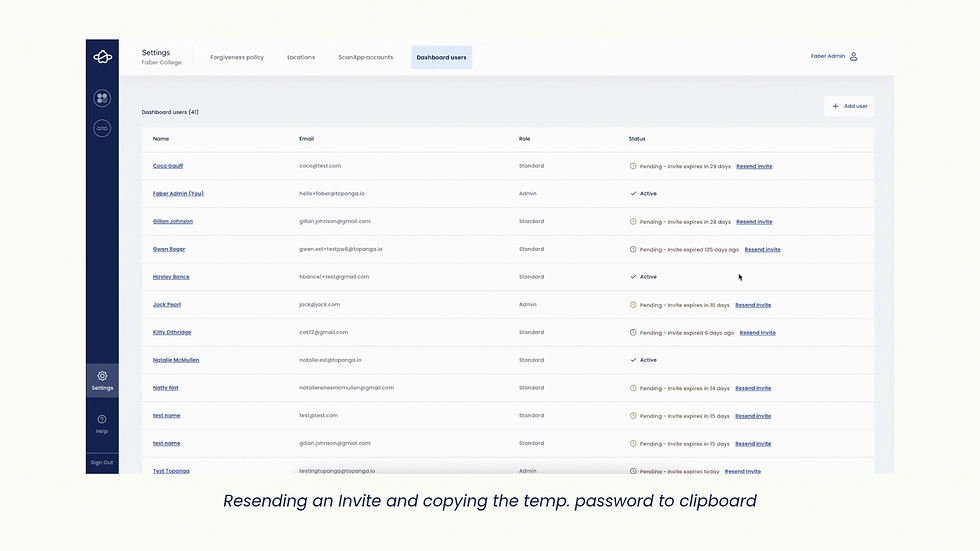
If a user’s status says “Active,” they have signed into the dashboard before
If a user’s status says “Pending,” they have NOT signed into the dashboard before
Note: Dashboard invites expire after 30 days, if their invite has expired (shown in red), the invite will need to be resent and will include a new temporary password

HOW TO ADD USERS:
Select +Add user at the top right corner
Enter user details: First name, Last name, email address
Note: Make sure the email address entered does NOT contain uppercase letters
Select "Admin" or "Standard" user permission role
Admin: access to view and manage everything in the dashboard
Standard: cannot add, edit, or delete locations, ScanApp accounts, dashboard users, or asset types Note: Standard users can still cancel rentals and generate fine reports for ReusePass, as well as modify StreamLine observations
Create User
This will automatically send an invite to the user's email address. You can also copy and paste their temporary password, and send it with a link to Setting Up the Dashboard and Monitoring Reusables in the Dashboard resources.

HOW TO EDIT USER ROLE/DETAILS:
If you are an Admin user, we recommend that you add the first/last names of your dashboard users and check to make sure they are assigned the correct role.
Select existing user name
Open user details
Select new user role (admin or standard)
HOW TO RESEND USER INVITE:
If you see the “Pending” status for any users, this means they haven’t signed into the dashboard yet — if their invite expired, you should re-send it
In case the invite ends up in the user’s Spam folder or for any reason they cannot find it, you can copy their temporary password and send it to them directly
HOW TO DELETE USER
If a user should no longer have permission to access the dashboard, you should delete the user. It’s easy to add a user back to the dashboard if they were accidentally deleted (see the add user flow above).
Select existing user name
Select delete user

bottom of page